
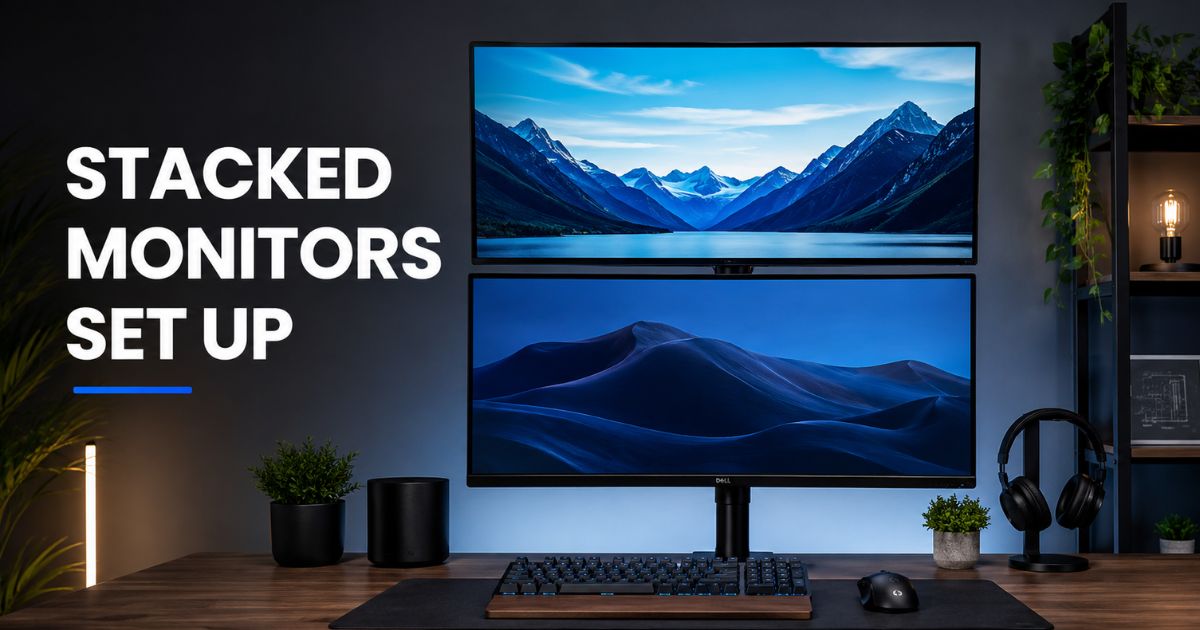
If you are constantly juggling multiple windows, tabs, and applications, a stacked monitor setup could completely transform the way you work. Instead of spreading screens side by side and stretching your desk to its limits, stacking monitors vertically gives you expanded screen real estate without consuming extra horizontal space.
Whether you are a developer, video editor, trader, gamer, or remote worker, this guide covers everything you need to know, from choosing the right hardware to configuring display settings and optimizing your workspace for long hours of comfortable use.
What Are Stacked Monitors?
A stacked monitor setup refers to a dual display configuration where one monitor is placed directly on top of another, creating a vertical screen arrangement rather than a traditional horizontal one. Instead of glancing left and right across two side-by-side displays, your eyes move up and down between the screens, which many users find more natural and less fatiguing over time.
This layout has become increasingly popular in home offices, trading desks, coding environments, and streaming setups. The lower monitor typically serves as the primary display for your main workflow, while the upper screen holds reference material, communication apps, dashboards, or secondary tasks. The result is a compact, organized, and highly productive workstation.
Why Choose Stacked Monitors?
There are several compelling reasons why more professionals and enthusiasts are switching to vertically stacked displays.
Space Efficiency: Traditional side-by-side dual monitor setups can exceed four feet in width, which is impractical for smaller desks or compact home office environments. Stacking monitors vertically reclaims horizontal desk space and leaves room for notebooks, peripherals, or simply a cleaner working surface.
Improved Multitasking: With two screens aligned vertically, you can dedicate your primary monitor to core tasks while keeping reference windows, chat applications, or dashboards visible on the second screen. This reduces constant window switching and keeps your focus intact.
Productivity Gains: Research from Dell indicates that a dual monitor configuration can speed up text-based tasks by up to 44% and spreadsheet work by up to 29%. Stacking screens takes full advantage of this benefit without requiring a wider desk.
Better Ergonomics: When set up correctly, a stacked arrangement promotes a more neutral head and neck posture compared to horizontal setups, where turning the neck repeatedly to view side monitors can cause lateral strain over time.
Ideal for Specific Workflows: Developers can keep their code on the bottom screen and documentation or terminal output above. Streamers can monitor gameplay below while managing chat and stream controls above. Traders can track multiple charts without looking away from their primary feed.
Read More: 40+ Best Desk Setup Ideas for a Stylish Workspace
Step-by-Step Guide on How to Set Up Stacked Monitors
Step 1. Choose the Right Monitors
Before purchasing or assembling your setup, make sure the monitors you plan to use are compatible with a stacked configuration.
- VESA Compatibility: Most monitors use a 75x75mm or 100x100mm VESA mounting pattern. Confirm both monitors support VESA mounting before buying any arms or stands.
- Similar Sizes and Resolutions: Using monitors of the same size, such as two 24-inch or two 27-inch displays, creates a visually consistent and seamless workspace. Mixing drastically different sizes can make the transition between screens uncomfortable.
- Thin Bezels: Monitors with slim bezels reduce the visual gap between the stacked screens, making the transition from one display to the other feel smoother.
- Refresh Rate and Sync Technology: For gaming or video work, look for panels with higher refresh rates (120Hz or 144Hz) and adaptive sync support such as G-Sync or FreeSync to minimize screen tearing and motion blur.
Step 2. Choose a Mounting Solution
The mounting hardware you choose will determine the stability, flexibility, and ergonomics of your entire setup. There are three primary options.
Dual Monitor Arms: A vertical dual monitor arm or pole-based mount provides the most flexibility. These arms allow independent tilt, swivel, and height adjustments for each screen. Look for arms that support at least 9 to 11 kg per monitor and offer 15 to 20 inches of vertical height travel. Models with integrated cable channels are a significant bonus for keeping your setup tidy.
Monitor Riser or Stacking Stand: If you prefer a simpler and more affordable option, a monitor riser or a purpose-built stacking stand places one monitor on an elevated platform above the other. These are less adjustable than arms but are quick to set up and generally more stable for heavier displays.
Wall Mounts: For a permanent installation, wall mounts can support vertically stacked screens and free up your desk entirely. This option works best when your desk position does not change frequently.
For most users, a dual monitor arm attached via desk clamp or grommet mount offers the best balance of flexibility, stability, and aesthetics.
Step 3: Install the Monitor Mount and Attach Monitors
Once you have your mounting hardware ready, follow these steps.
- Attach the desk clamp or grommet mount securely to your desk. Ensure your desk can support the combined weight of both monitors plus the arm.
- Assemble the pole or arm according to the manufacturer’s instructions.
- Remove the stands from both monitors.
- Attach each monitor to its respective bracket using the VESA screws. Tighten firmly but avoid over-torquing.
- Position the lower monitor first, then attach the upper monitor above it on the arm or stand.
- Check that both monitors are level and securely held before releasing them.
If your monitors have different VESA patterns, you may need an adapter plate to ensure a proper fit.
Step 4: Connect Cables and Manage Wiring
With monitors mounted, the next step is connecting them to your computer.
- Use the appropriate cables for each monitor. Common connection types include HDMI, DisplayPort, and USB-C. DisplayPort is generally preferred for higher refresh rates and resolutions.
- Your GPU (graphics card) must have at least two video output ports. If you are using a laptop, a docking station or USB-C hub with dual display output will be necessary.
- For the upper monitor, use longer cables (6 to 10 feet) to route them neatly along the arm or pole.
- Secure cables using built-in cable management channels on your arm, or use cable ties, sleeves, or adhesive clips along the back of your desk. Clean cable management not only looks better but prevents accidental tugging on the upper screen.
Step 5. Configure Display Settings
After physically connecting both monitors, you need to configure them in your operating system so they function as an extended vertical display.
On Windows:
- Right-click on the desktop and select Display Settings.
- Both monitors should appear in the display layout panel. If not, click Detect.
- Click and drag the monitor icons so the second monitor appears directly above the first, matching their physical placement on your desk.
- Under Multiple Displays, select Extend these displays.
- Click on each monitor individually and adjust resolution, refresh rate, and scaling to match your preferences.
- Click Apply and then Keep Changes to save your settings.
On Mac:
- Open System Settings and navigate to Displays.
- Both connected monitors should appear as separate display thumbnails.
- Click and drag the thumbnails so one sits directly above the other to reflect the vertical stacking on your desk.
- Adjust resolution and refresh rate for each screen individually.
- Confirm the changes and close the settings panel.
Step 6. Optimize Ergonomics
A stacked monitor setup offers ergonomic benefits, but only if positioned correctly.
- Primary Monitor Height: Position your lower (primary) monitor so the top edge of the viewable area is at or just below your natural eye level when seated in a neutral posture. This prevents you from craning your neck downward.
- Upper Monitor Angle: The top monitor should be tilted slightly downward at a 15 to 25 degree angle so it faces directly toward your eyes rather than pointing straight ahead. This reduces the need to strain your neck upward when glancing at the secondary screen.
- Distance: Both screens should be at arm’s length, approximately 20 to 30 inches from your face, to reduce eye strain.
- Chair and Posture: Adjust your chair height so your feet are flat on the floor and your forearms rest comfortably at desk height. A well-positioned chair makes a dramatic difference in how comfortable your stacked monitor setup feels over long sessions.
- Apply the 80/20 Rule: You should spend around 80% of your time looking at the bottom screen and only 20% glancing upward. If you are constantly staring at the upper screen, reconsider how you have arranged your workflow.
Step 7: Test and Adjust
Before settling into your new setup, take 10 to 15 minutes to test everything thoroughly.
- Move your cursor across both monitors to confirm they extend vertically as expected.
- Open your most-used applications and arrange them across both screens to mirror your actual workflow.
- Sit at your desk in your normal working posture and check whether the monitor heights and angles feel comfortable. Make small adjustments to tilt and height as needed.
- Check for any cable slack or tension, especially on the upper monitor’s cables, and reroute if necessary.
Factors to Consider When Stacking
Ergonomics and Viewing Comfort
Ergonomics is the most critical factor in any stacked display configuration. Poor positioning of the upper monitor is one of the most common complaints, as it can lead to neck extension and cervical strain over time. The top screen should only serve as a secondary display for passive monitoring rather than as a screen you look at for extended periods. Follow OSHA and occupational health guidelines when calibrating monitor height and tilt for your individual body dimensions.
Monitor Size, Resolution, and Compatibility
Larger monitors, particularly 32-inch displays, can make a vertically stacked arrangement feel overwhelming, as the total vertical span becomes very tall. Most users find that 24-inch to 27-inch monitors strike the best balance for stacked setups. Resolution consistency between the two screens also matters. Mismatched resolutions can create inconsistencies in text and image scaling, especially if you frequently drag windows between screens.
Desk Space and Mounting Stability
Your desk needs to be deep enough, ideally at least 24 to 28 inches, to accommodate the monitors at a comfortable viewing distance. The mount or arm must be rated for the combined weight of both displays. Overloading an underpowered mount is a safety risk and can result in instability or damage to your equipment.
Cable Management and Connectivity
Stacking two monitors doubles your cable workload. Planning your cable routing before mounting the displays saves significant frustration later. Use arms with built-in cable channels wherever possible. A docking station can consolidate multiple connections into a single cable run from your laptop to your desk, dramatically simplifying your setup.
Lighting and Glare Reduction
The vertical arrangement changes how ambient light falls on your screens. Overhead lighting and windows can create glare on the upper monitor, which is angled differently from the lower one. Position your setup so windows are to the side rather than directly in front or behind you. Anti-glare screen protectors or monitors with matte panels can also help reduce reflection and eye fatigue in bright environments.
Workflow Optimization and Productivity
Think carefully about which tasks belong on each screen before you start using your setup. Placing your primary, most time-intensive work on the lower screen and secondary reference content on the upper screen is the most ergonomically sound and productive approach. Coders benefit from keeping their IDE below and their documentation or terminal above. Video editors can work on their timeline at the bottom while reviewing reference files or preview windows at the top.
Recommended Stacked Monitor Setups
Different users have different needs, so here are some popular configurations worth considering.
For Developers and Coders: Two identical 27-inch 1440p monitors with thin bezels, mounted on a dual monitor arm. Keep your code editor and terminal on the lower screen and API documentation or Stack Overflow on the upper screen. This reduces side-to-side eye movement and takes advantage of the vertical nature of code.
For Streamers and Content Creators: An ultrawide or standard 27-inch display on the bottom for gameplay or creative work, with a smaller 24-inch monitor above for OBS, Twitch chat, or editing previews. This keeps your face angled toward the camera on the primary display rather than turning to a side monitor.
For Traders and Finance Professionals: Two or more 24-inch 1080p displays stacked vertically, each running different market feeds, charts, or news dashboards. A pole-based dual arm works well here for maximum stability during active trading hours.
For Remote Workers and General Productivity: Two matching 24-inch or 27-inch monitors with a monitor riser or dual arm. The lower screen handles email, documents, and video calls while the upper screen keeps Slack, your calendar, or task management tools visible at all times.
For Budget Setups: If a full VESA arm setup is out of budget, a quality monitor riser placed under the upper display and the lower monitor positioned in front of it can work reasonably well. This limits ergonomic adjustability but is a practical starting point.
Frequently Asked Questions
Can any monitor be used in a stacked setup?
Most modern monitors with VESA mounting support (75x75mm or 100x100mm) can be used in a stacked configuration. Monitors without VESA support may require a third-party adapter.
Do I need a special graphics card for stacked monitors?
Your GPU simply needs to support dual output. Most dedicated graphics cards and many modern integrated GPUs can drive two monitors simultaneously without any special hardware.
Is a stacked monitor setup good for gaming?
It can be, particularly for streamers who need a separate screen for chat and controls. However, most games are designed for horizontal fields of view, making side-by-side setups more immersive for actual gameplay.
What is the ideal height difference between stacked monitors?
The gap between the two screens should be minimal, ideally less than an inch, to make transitioning between them feel natural. A dual arm with integrated cable management helps achieve this cleanly.
Will stacking monitors cause neck pain?
If the upper monitor is positioned too high or not angled downward properly, it can cause neck strain. Keep the upper screen tilted at 15 to 25 degrees toward your eyes and use it mainly for secondary, glanceable content.
Can I stack three monitors vertically?
Triple stacking is possible with heavy-duty arms or custom stands, but it significantly increases the vertical span and can make the uppermost screen impractical to view comfortably. It is a rare but achievable configuration for specialized workflows.
What cables do I need for a stacked monitor setup?
HDMI, DisplayPort, or USB-C cables work depending on your monitor and GPU ports. For higher refresh rates and resolutions, DisplayPort is generally the preferred choice.
Conclusion
A well-configured stacked monitor setup is one of the most effective ways to maximize screen real estate, reduce desk clutter, and improve your daily workflow without expanding your desk footprint. By choosing the right monitors, investing in a reliable mounting solution, managing your cables neatly, and fine-tuning your ergonomics, you can create a vertical dual display workspace that supports comfortable and efficient work for hours on end.
The key is to treat ergonomics as non-negotiable. A setup that causes neck or eye strain will ultimately hurt your productivity, no matter how good it looks. Take the time to calibrate your monitor heights, angles, and distances properly, and you will quickly see why stacked monitors have become a preferred choice for developers, creators, traders, and remote professionals worldwide.